- Your cart is empty
- Continue Shopping
How to Set Up Multi-Monitor Systems for Productivity or Gaming
- Posted on
-
Posted by: thewebsitemakers
- 0 comments
- Categories: Blog

A multi-monitor setup can revolutionize the way you work or play, providing increased screen real estate for multitasking or creating an immersive gaming experience. Whether you’re a professional looking to boost productivity or a gamer seeking an edge, setting up the perfect multi-monitor configuration is easier than you think. At YmrOasis, we provide everything you need to make it happen, from monitors to the latest graphic cards.
Why Choose a Multi-Monitor Setup?
For Productivity:
- Seamless Multitasking: Work on multiple applications side-by-side.
- Improved Workflow: Keep documents, emails, and tools visible simultaneously.
- Creative Benefits: Perfect for video editing, design, or coding.
For Gaming:
- Immersive Experience: Surround yourself with action for a panoramic view.
- Increased Field of Vision: Gain an advantage in competitive gaming.
Essential Components for a Multi-Monitor Setup
1. Monitors
Choosing the right monitors is crucial for a seamless experience.
- Look for thin bezels for a virtually borderless view.
- Ensure they support your desired resolution and refresh rate.
- YmrOasis Recommendations:
- LG UltraGear Gaming Monitors: High refresh rates and stunning visuals.
- Dell Ultrasharp Monitors: Ideal for professionals with vibrant color accuracy.
2. Graphics Card
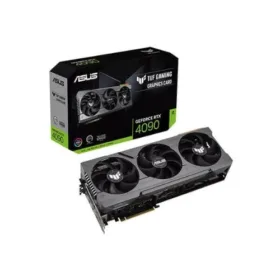
A powerful graphics card is key to supporting multiple displays without lag.
- Ensure your GPU has enough ports (HDMI, DisplayPort) for your monitors.
- Look for cards with multi-monitor support.
- YmrOasis Recommendations:
- GIGABYTE GeForce RTX 4060 WindForce OC 8GB: Handles gaming and productivity with ease.
- MSI Radeon RX 6700 XT: Great for multi-monitor setups with high resolutions.
3. Monitor Stands or Mounts
Free up desk space and position your monitors at the perfect angle with adjustable stands or mounts.
- YmrOasis Deals: Adjustable monitor arms for ergonomic setups.
4. Cables and Adapters
Ensure you have the right cables (HDMI, DisplayPort) for your monitors and GPU.
- Pro Tip: Use high-speed cables for 4K or high-refresh-rate monitors.
How to Set Up Your Multi-Monitor System
Step 1: Connect Your Monitors
- Plug each monitor into your graphics card using the appropriate ports.
- Use HDMI splitters or docks for laptops with limited ports.
Step 2: Configure Display Settings
- For Windows:
- Go to Settings > System > Display.
- Arrange the monitors to match their physical layout.
- Select the resolution and orientation for each screen.
- For macOS:
- Go to System Preferences > Displays.
- Drag and arrange the displays in the Arrangement tab.
Step 3: Optimize for Productivity or Gaming
- Productivity:
- Assign specific applications to specific monitors.
- Use window management software for easy multitasking.
- Gaming:
- Enable multi-monitor gaming in your GPU control panel.
- Optimize in-game settings for surround displays.
Tips for the Best Multi-Monitor Experience
- Match Your Monitors: Use identical monitors for consistent color and performance.
- Cable Management: Use clips or sleeves to keep cables tidy.
- Upgrade Your Desk: Ensure it can accommodate multiple monitors and accessories.
Shop at YmrOasis for Your Multi-Monitor Needs!
At YmrOasis, we offer:
- Top-quality monitors for gaming and productivity.
- High-performance graphic cards to support multi-monitor setups.
- Accessories like monitor mounts, cables, and ergonomic solutions.
- Expert advice to help you build your dream setup.
Conclusion
Setting up a multi-monitor system can transform your workspace or gaming setup. With the right components and a little planning, you can create an efficient and immersive environment. Explore the best monitors, graphic cards, and accessories at YmrOasis to get started.
Contact us today for personalized recommendations!